
Translate CRM User Interface
Before you begin
Take some time to familiarize yourself with the site by clicking through all the buttons and looking at all of the pages. This will give you the proper context for many of the phrases.
Access the Translate Tool
If you have been granted permission to translate a language, you can access the Translate tool by clicking Translate in the sidebar.

Once you are in the translate tool, you will have the option to translate Phrases, Emails or Lessons using the toggle on the top left.
On the second row of the translate page you'll find the filters. You can use these to filter the list to the phrases/emails/lessons that you want to see.
If you have permission to translate more than one language, you can also select the language you want to translate into.
{curly braces}
Everything in {curly braces} is a placeholder. Don't translate anything in {curly braces} but keep them intact in the phrase where it makes sense for the language you are translating into.
Translate Phrases
On the Phrases tab you'll see a list of phrases to translate.

This is the phrase you are translating.
If the suggested translation needs editing, you can edit it here before clicking Save.
In the case of Lesson names - if they have changed you'll see a "need retranslating" badge. In this case review the translation to ensure it's still correct and hit save.
You can click Suggest Translation to have a translation suggested for you.
Click Save when you're done.
Go through and translate each of the phrases until there are no phrases left to translate.
Search
At the top of the list of phrases to translate there is a search. You can use this to search for any English word to translate.
Debug Mode
On the top of the page next to the language selector you'll see a checkbox for Debug Mode. When this is checked, you'll see all of the translated phrases surrounded by "(en:<phrase>)". You can use this to check if something will show up on the Translate Words screen and to see the context of the phrase.
Verify
When you are all done translating words, go to your Profile, change your language to the language you are working on, and browse through the site again. Look at all of the wording to ensure it makes sense. If you need to change any words, you can use the Search/Filter function (see below) to find that specific phrase and change it.
Translate Emails
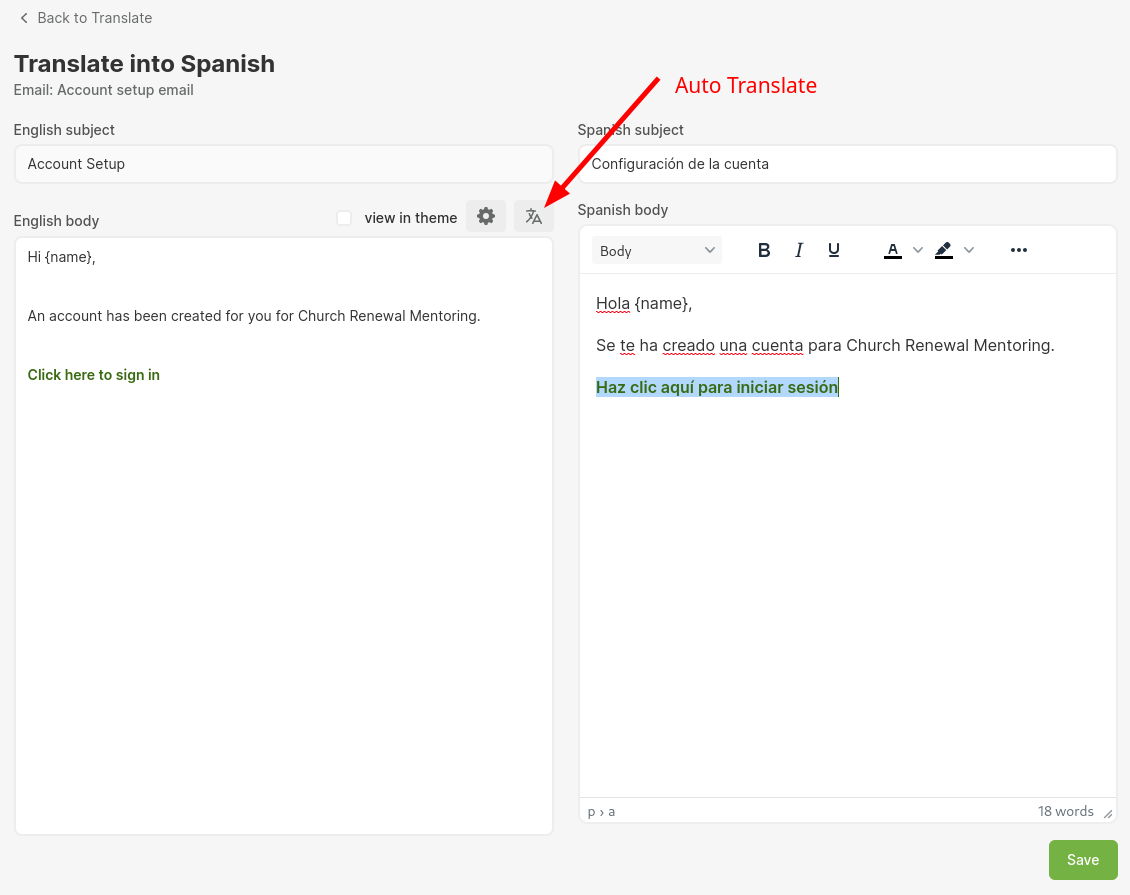
Select Emails on the top left. On this page you'll see a list of all the emails and notifications to translate. Once you select something you'll see the English content on the left, and the translated content on the right.
If your language supports it, you can click the Auto Translate button to automatically translate the subject and body. Make edits as needed and click Save.
 Links
Links
A lot of the emails contain links. You can edit the text in these links by right clicking on link, clicking Link..., and then editing the text in the Text to display field.